Live captions and transcription
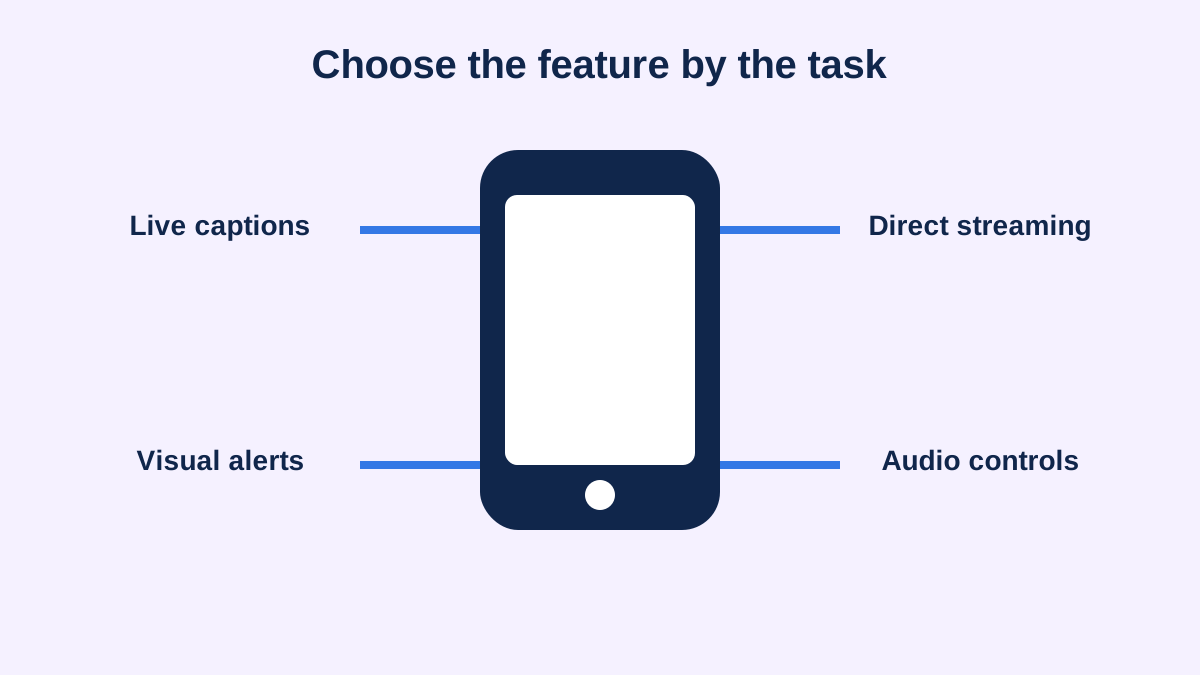
Phones may caption media, calls or nearby conversation through different built-in or app-based features. Availability, language, internet dependence and data handling differ. Test names and numbers, learn how to change text size and keep a written confirmation route for critical details.
Hearing-device streaming
Direct streaming can deliver call or media audio to compatible hearing devices. Some combinations support one-way audio only; hands-free calling may use the hearing-device microphones or the phone microphone. Check official compatibility for the exact models and test reconnection after a restart.
Audio adjustments
Mono audio can combine left and right channels when content would otherwise be missed in one ear. Balance controls change relative output. Headphone accommodations or personalized audio features may adjust frequency response. These controls alter playback; they do not diagnose hearing or replace a properly fitted medical device.
Alerts and sound recognition
Flash, vibration, wearable notifications and sound-recognition features can supplement audible alerts. They should not be assumed to replace approved smoke, carbon-monoxide or workplace safety systems. Test focus modes, muted states, charging and network failure.
Privacy and permissions
Caption and sound-recognition tools may process audio on the device, in an app or through a service. Review the current provider documentation before using them for confidential conversations. Limit microphone permissions to necessary apps and tell participants if audio is recorded or retained.
Create a recovery card
Write down the accessibility feature names, menu paths, paired devices and support contacts. Include how to restore captions, select the correct microphone and reconnect a hearing device. A tested fallback—speakerphone with captions, relay, text or a wired receiver—prevents one software change from ending access.
Build a function-by-function compatibility check
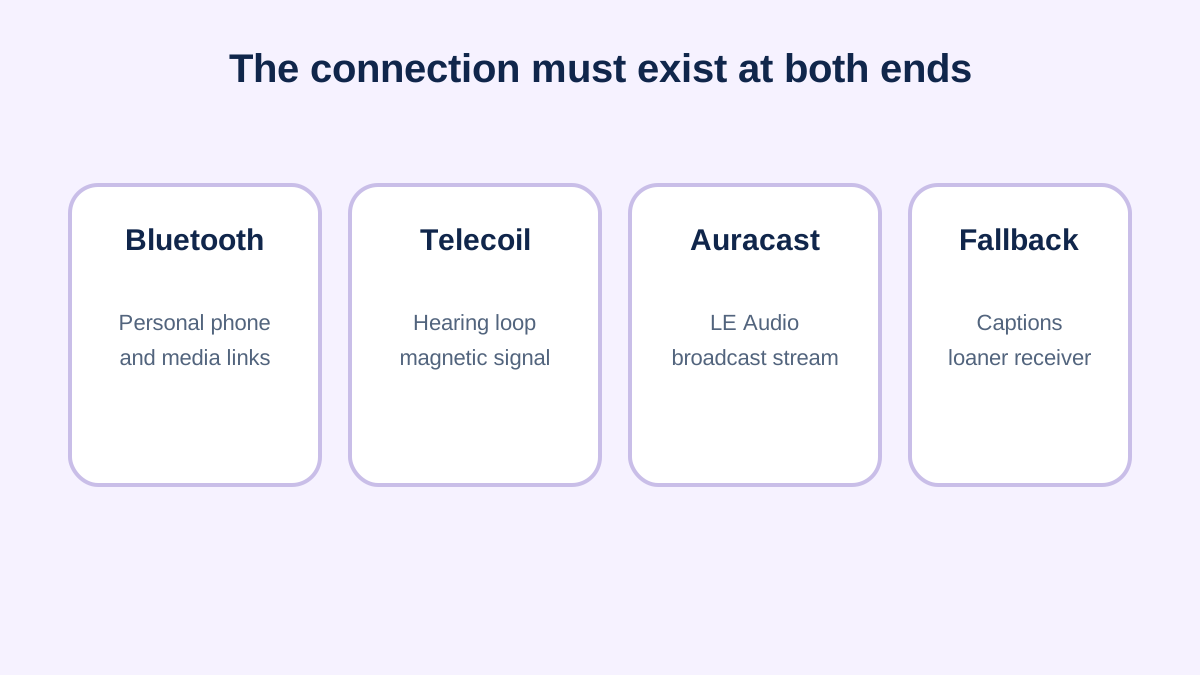
Create rows for call audio, media, app control, hands-free microphone use, captions, notification routing and public broadcast reception. Mark each as supported, unsupported or not tested for the exact phone and hearing device. This prevents one successful feature from being interpreted as universal compatibility.
Test incoming and outgoing calls, a video app, recorded media and navigation prompts. Switch between car audio and hearing devices. Confirm whether calls return to the expected output after disconnecting. Record the recovery steps and update them after major operating-system changes.
Use accessibility without creating new risk
Do not look at live captions while driving. Configure alerts and audio routing before travel and use hands-free controls where lawful and safe. Emergency alerts need a dependable route that is not silenced by an ordinary focus mode. Review how accessibility features behave when the screen is locked.
For work, school or healthcare, ask whether the app and transcript handling are approved. A convenient consumer feature may send data through a service that is unsuitable for protected information. When confidentiality is material, use the organization’s approved communication access option.
Face-to-face communication tools
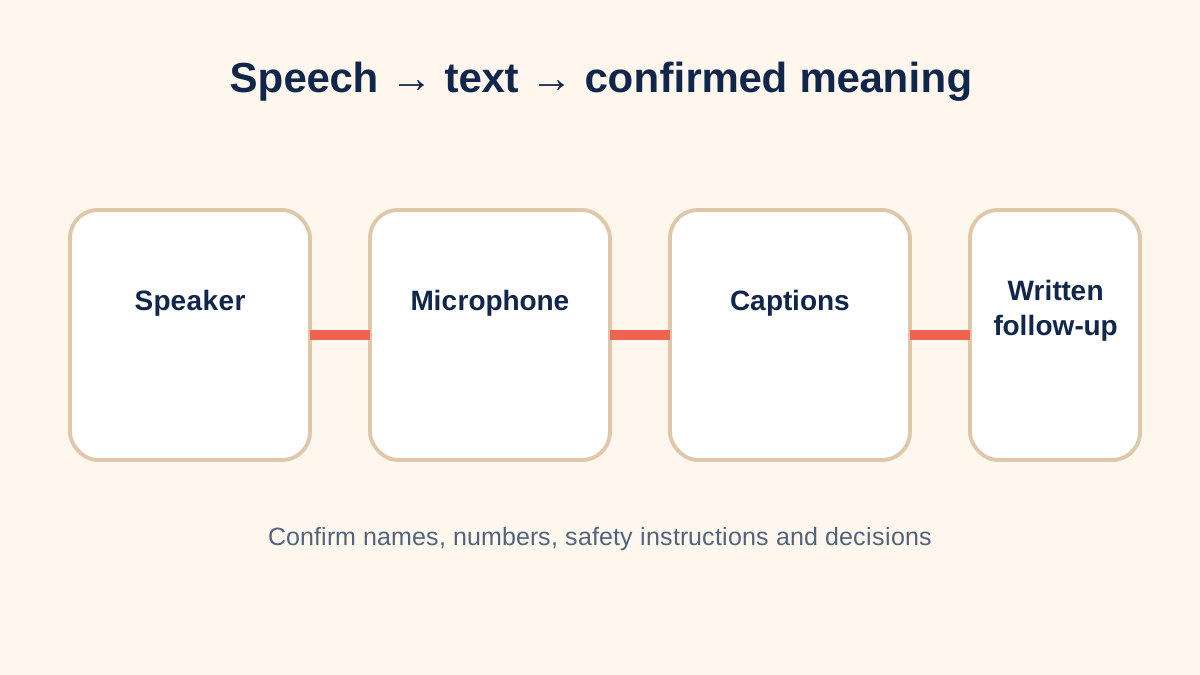
A phone placed between speakers can provide live transcription in a noisy counter interaction or appointment, but microphone distance, turn-taking and visual placement affect usefulness. The screen should not force the user to look away from the speaker or shared material. Confirm critical words aloud or in writing rather than trusting an imperfect transcript.
Translation and captioning are different tasks, and combining them can add delay and error. For an interpreter, legal proceeding, medical visit or other consequential interaction, use the communication service appropriate to that setting.
Maintain accessibility after updates
Operating-system and app updates can move settings, reset permissions or change compatibility. After a major update, retest call routing, captions, alerts and paired hearing devices before an important event. Keep automatic backups of ordinary phone data, but review whether caption transcripts or recordings should be retained.
If a feature disappears, check current official accessibility documentation and the hearing-device compatibility list before factory-resetting devices. A written recovery card can prevent repeated trial and error.
Evaluate battery and network dependence
Streaming, captions, Bluetooth and continuous microphone access can increase battery use in both the phone and connected hearing devices. Measure endurance during a typical long day rather than relying on a short demonstration. Carry an appropriate power option and know which functions remain available while charging. Test captioning and call access with Wi-Fi disabled, weak cellular service and airplane mode where appropriate; features that depend on a network need an offline fallback. Also confirm whether a wearable duplicates, delays or silently dismisses important alerts. A reliable setup identifies the dependencies explicitly, checks them before travel or critical events and provides another communication channel when power or connectivity fails.
Sources and review notes
Sources were checked for this editorial update on October 12, 2026. External guidance can change; follow the linked source for the current version.
This page provides education, not an individual diagnosis, treatment plan, legal opinion or billing decision. Historical expert contribution is credited only where supported by the original project record; it does not imply review of this update.